Showing posts with label Input. Show all posts

Friday, January 6, 2012

HDR Sphere Image

There will be times when you want or need to use environmental lighting (rather than Blender light source), and therefore will need an HDR image.  Many scene type HDR images can be found online, but there may be times when you want an image of a specific scene.

Typically this would be achieved by taking a series of photos where the camera is rotated (ideally) around the the central node of the lens.  These images would be stitched together to create a 360 panorama.  This option isn't always available. 

Another simple approach that would give you a 180 degree solution is to use a mirror ball (or christmas ornament), and do some manipulation.  This entry will show how to convert a mirror ball image into a rectangular background which could be used in blender for lighting, such as Cylinder Lighting, or HDRI Lighting.

So first we start out with a mirror ball-like image.


The program of choice is to use HDR Shop, which can be found here: http://www.hdrshop.com/

Load the image in this program, and it should look something like below.

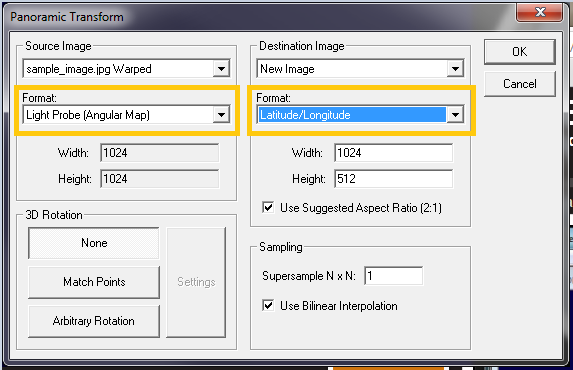
Next, open the Panoramic Transformations dialog.

Apply these changes and hit OK.

Next, open the same dialog, and now apply the following changes, and hit OK.
Now the image should be nicely unwrapped to a 180 degree pano of the scene.


Saturday, December 31, 2011

Arbaro Assets

The following is the list of Arbaro plants that are available (default meshes).

Barley

Black Tupelo

CA Black Oak

Desert Bush

Eastern Cottonwood

European Larch

Fan Palm

Lombardy Poplar

Palm

Quacking Aspen

Rush

Sassafras

Shave Grass

Tamarack

Weeping Willow

Wheat

Friday, December 30, 2011

Arbaro

NOTE: consider using Sapling instead of Arboro.

Arbaro is a third-party developed app which has some basic plant life (bushes, trees, etc) that can be customized and exported as a Wavefront OBJ, which can be imported into Blender.

The program can be downloaded at http://sourceforge.net/projects/arbaro/

To run the program, you'll also need the Java development sdk: http://www.oracle.com/technetwork/java/javase/downloads/index.html

Once you download and unzip the arbaro zip file, follow the instructions in the readme to get it running.

I used the following commands to bring up the GUI:
     cd <arbaro directory>
     java -jar arbaro.jar -p pov/quaking_aspen.pov -o \
           pov/quaking_aspen.inc trees/quaking_aspen.xml 


When launched correctly the GUI should look like this.

You can browse through File > Open to see what other base objects are available.

To export a mesh, File > Export, and in the export window, set the Export Format to Wavefront OBJ and set the desired path.

Next, in Blender, do an Import and browse to the newly created OBJ file.

The mesh is high-poly, but looks really good.  This will help save time if you need some detailed plants in your scene.

Monday, December 12, 2011

Sketchup To Blender

This entry will show the steps of getting a Google Sketchup file (with textures) into Blender.  Note that many Sketchup files can be obtained from the 3D Warehouse.  Results may vary.

First acquire your desired Sketchup file.  In this tutorial, I'll get one from the 3D warehouse.  What's important to note here, is that although Collada's can be imported, from tutorials I've read suggest that the KMZ has to be used.  If no KMZ is available, but a Collada is, you can try, but the results aren't guaranteed.  Also, if you have Sketchup, you can download the skp file, and try to save it as a KMZ or Collada and try importing from there.

In this case the KMZ was available, so I downloaded it.  The secret trick here is that a KMZ is really just a ZIP file.  So by changing the extension to ZIP, the files can be extracted with standard zip software.
 Inside the zipped folder will contain the images (textures), and the model (.dae).
 Inside Blender, select Import > COLLADA to choose the file just downloaded.

If the model was created right (no bad instancing in sketchup), the model should be available in the 3D viewport.  In many cases, the scale will be off (usually on the very large side), so it will take some scaling [s] to get it into a reasonable view of the camera.  Or the camera clipping planes will need to be adjusted.

If the DAE was loaded in its native folder (from the zip file), the textures should be mapped correctly. The complete textured model is now available in Blender.